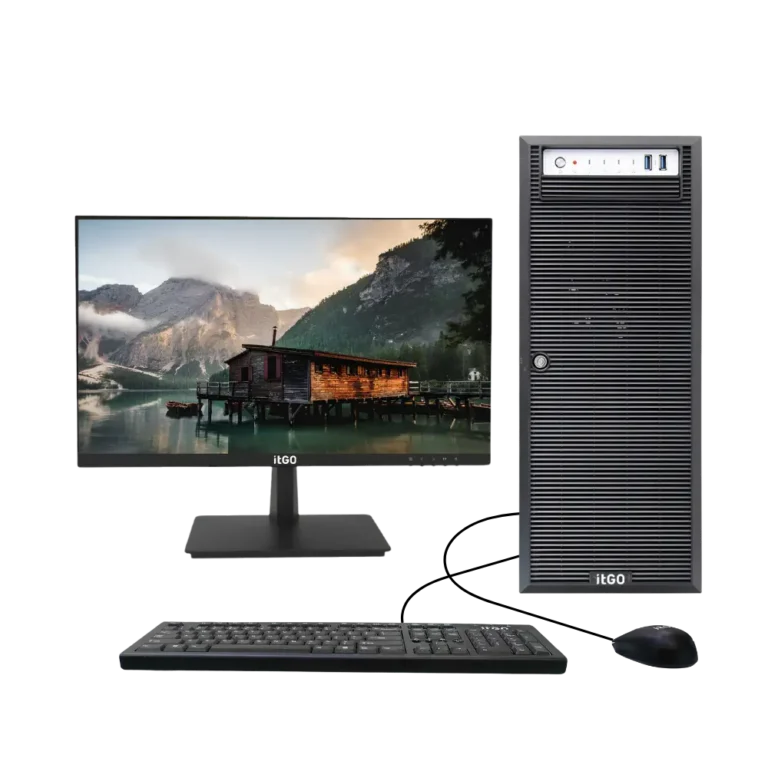
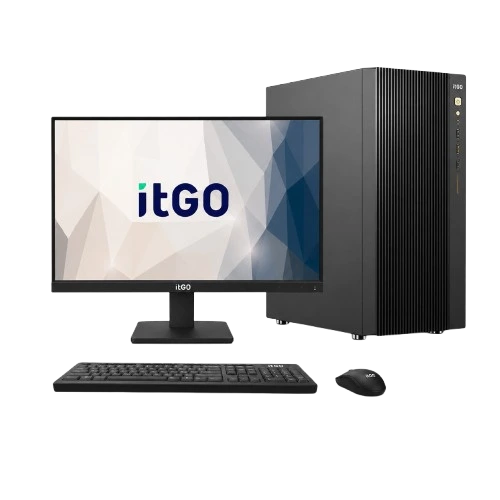
The Government e-Marketplace (GeM) has made IT procurement faster and more transparent for central and state government departments, PSUs and autonomous bodies. But buying computers on GeM still involves decisions that affect your users for the next five years: the right specification, the right buying mode, the right warranty and the right seller. This guide walks you through the process from requirement to acceptance, with practical tips from an OEM that supplies desktops, all-in-one PCs, workstations and servers on GeM.
Step 1: Define what your users actually need
Most procurement problems start with a specification copied from an old file. Before you open GeM, write down who will use the systems and for what:
- Office and data-entry work (email, MS Office, e-Office, browser-based applications): an Intel Core i3/i5 or AMD Ryzen 3/5 desktop or all-in-one with 8–16 GB RAM and an SSD is usually enough.
- Front desks, help desks and counters where space is tight: an all-in-one PC or a mini PC behind the monitor saves desk space and cabling.
- Design, GIS, CAD or video work: a workstation with a dedicated graphics card, more memory and certified drivers.
- Central applications, file storage or databases: a server with RAID storage, redundant components and on-site support.
Write the minimum specification your users need, not the maximum available. Over-specifying raises the cost per unit and can reduce the number of compliant sellers.

Step 2: Get your GeM buyer account and approvals ready
Purchases on GeM are made by registered government users. Typically, a primary user registers the organisation and creates secondary users who act as buyers, consignees and paying authorities. Make sure the following are in place before you start:
- Buyer, consignee and paying authority roles are created and active.
- Administrative and financial approval for the purchase is available.
- Delivery addresses and consignee details are correct, especially for multi-location deliveries.
Step 3: Choose the right buying mode
GeM offers different buying modes depending on the value of the purchase and the number of sellers. The value limits are set by the General Financial Rules and GeM policies, and they are revised from time to time, so always check the current limits on the GeM portal.
| Buying mode | When it is typically used | What to check |
|---|---|---|
| Direct purchase | Low-value purchases from an available catalogue product | Specification match, delivery period, warranty |
| L1 purchase | Mid-value purchases comparing several catalogue offers | Comparable products, lowest price among compliant offers |
| Bid / reverse auction | Higher-value or customised requirements | Clear technical specifications, eligibility, evaluation criteria |
Step 4: Write a clear technical specification
For bids, a clear specification protects you from non-compliant supplies. Specify the processor generation and class, minimum RAM, storage type and size, display size (for AIOs), operating system, warranty period and type, and any certifications you need. Avoid naming a single brand or model unless it is technically justified.
Include practical requirements that are often forgotten: keyboard and mouse type, ports needed, Wi-Fi and Bluetooth, power supply rating, and whether the warranty should be on-site.
Step 5: Apply Make in India preference correctly
Under the Public Procurement (Preference to Make in India) Order, local suppliers whose products meet the prescribed local content can receive purchase preference. Ask sellers for their local content declaration and, for bids, specify how you will apply the preference. Buying from an Indian OEM that designs, assembles and supports its systems in India also simplifies after-sales service.
Step 6: Check warranty and service, not just price
The lowest price can become expensive if a system is down for weeks. Before you place the order, confirm:
- The warranty period (for example 3 or 5 years) and whether it is on-site or carry-in.
- Where the nearest service centre or engineer is located for each consignee.
- How complaints are logged and what the response time is.
itGO systems on GeM come with a standard warranty that can be extended to 3 or 5 years, and you can find the nearest itGO service centre by PIN code.
Step 7: Receive, inspect and accept the delivery
When the consignment arrives, the consignee should inspect the outer packaging, count the boxes, check serial numbers against the invoice and test the systems. Record any shortages or damage before generating the receipt and acceptance certificates on GeM. Prompt acceptance helps the seller get paid on time, and prompt rejection protects you when something is wrong.
Common mistakes to avoid
- Copying an old specification with processors that are no longer manufactured.
- Ignoring the warranty type and ending up with carry-in service for remote offices.
- Not specifying installation when systems must be deployed across several locations.
- Delaying acceptance, which slows down the whole procurement cycle.
Frequently asked questions
Can I buy a customised PC configuration on GeM?
Yes. For customised requirements, a bid lets you specify the configuration you need. Catalogue products are best when a standard configuration fits.
Is an all-in-one PC allowed instead of a desktop?
Yes, all-in-one PCs are a separate product category. They are a good choice where desk space is limited, such as counters and reception areas.
How do I know if a product is Made in India?
Sellers declare the local content of their products. Check the declaration on the product page or ask for it in your bid.
Buy GeM-ready systems from an Indian OEM
itGO designs, assembles and supports desktops, all-in-one PCs, workstations and servers in India, with GeM-ready configurations and pan-India service. Explore our Government & GeM solutions or contact our team for help with your specification.
Need help choosing the right systems?
itGO designs, assembles and supports desktops, all-in-one PCs, mini PCs, workstations and servers in India, with GeM-ready configurations and warranty up to 5 years.

The itGO team at Mek Peripherals India Private Limited writes practical guides on business computers, servers, workstations and GeM procurement.